By ShriPublished May 26, 2026
How to Humanize AI Text Inside Claude (MCP Setup)
If you write with Claude, you already know the friction: Claude produces a solid draft, and then you leave Claude to humanize it somewhere else. The SupWriter connector removes that step. Once it's added, Claude can humanize, paraphrase, grammar-check, and run AI detection right inside your conversation.
Here's how to set it up — it takes about a minute.
The 60-second version
Open Claude → Settings → Connectors → Add custom connector → paste https://supwriter.com/api/mcp → connect → sign in with your SupWriter account → Allow access. Done. Skip to "Your first call" below.
Step 1: Open Settings
Click your profile avatar in the bottom-left corner of Claude and choose Settings.
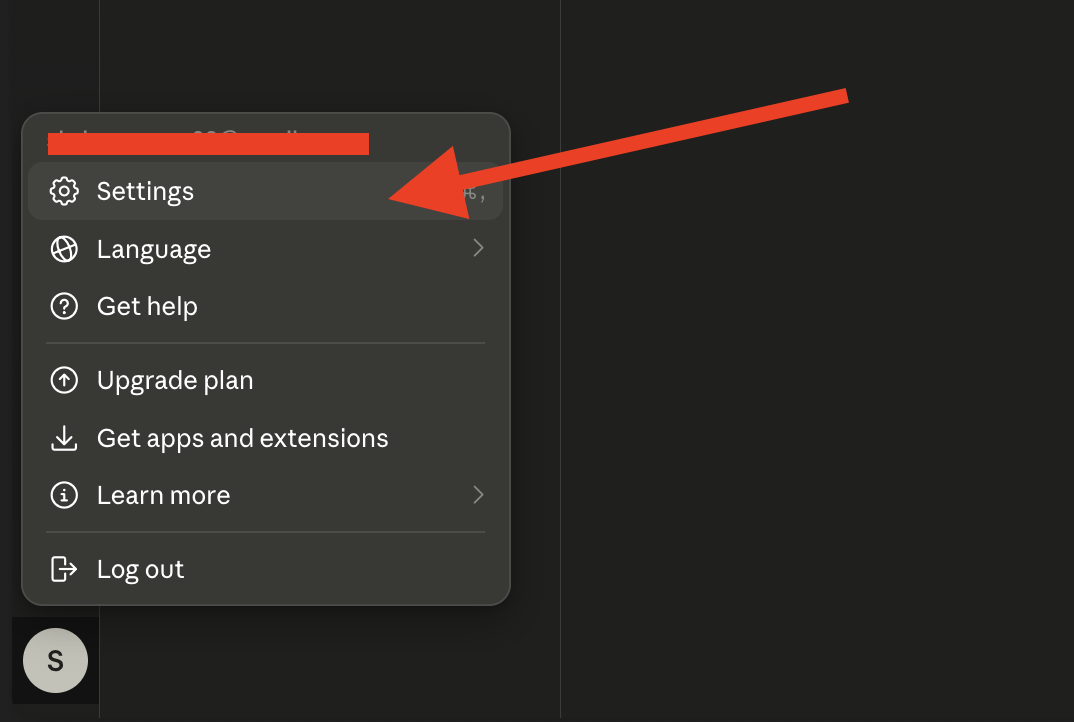
This works on Claude Pro, Max, Team, and Enterprise, and on the Claude desktop app.
Step 2: Go to Connectors → Customize
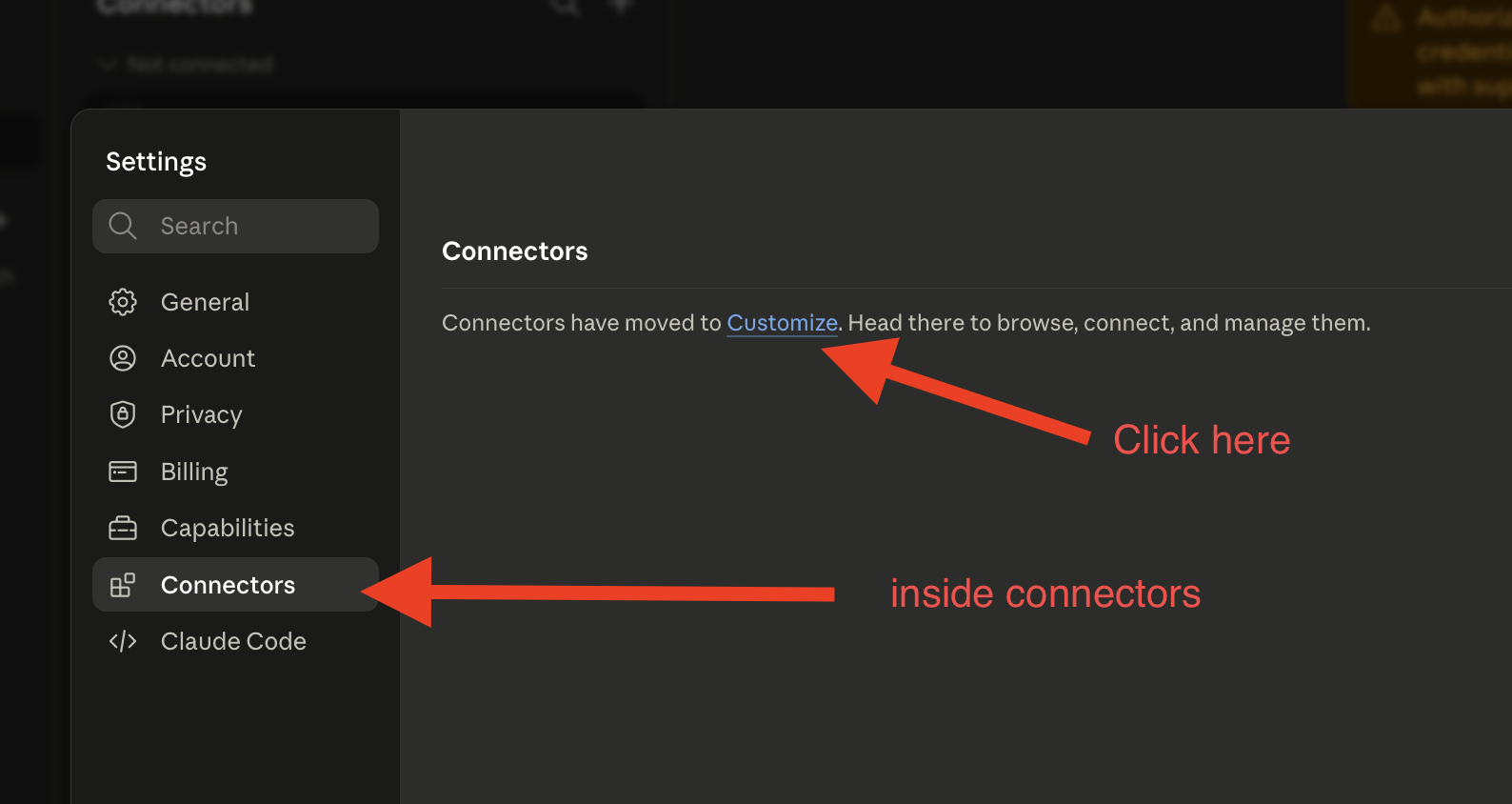
In the Settings sidebar, open Connectors. Connectors now live under Customize — click that link to manage them.
Step 3: Add a custom connector
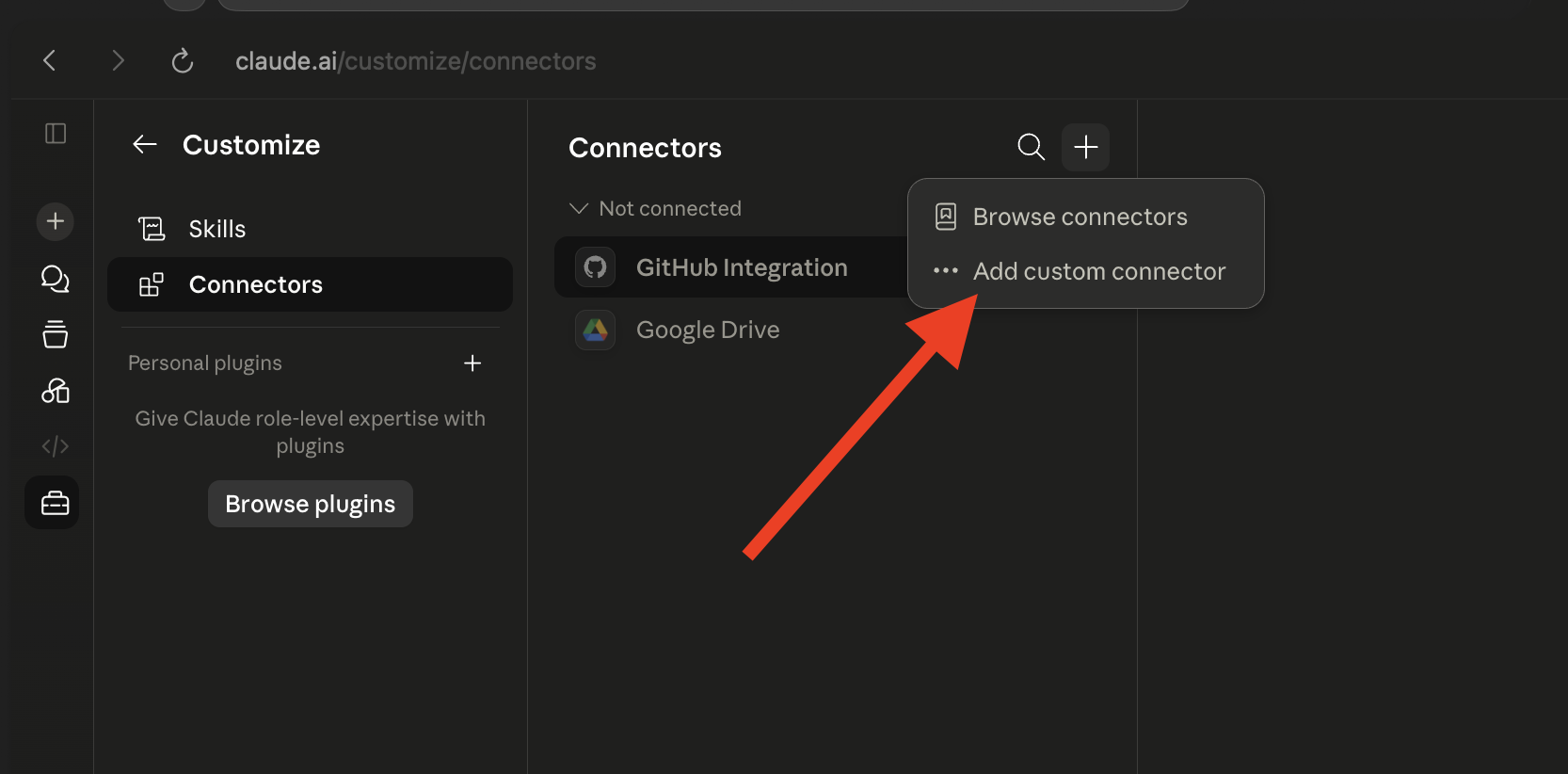
On the Connectors page, click the + button in the top-right and choose Add custom connector.
Step 4: Enter the SupWriter URL
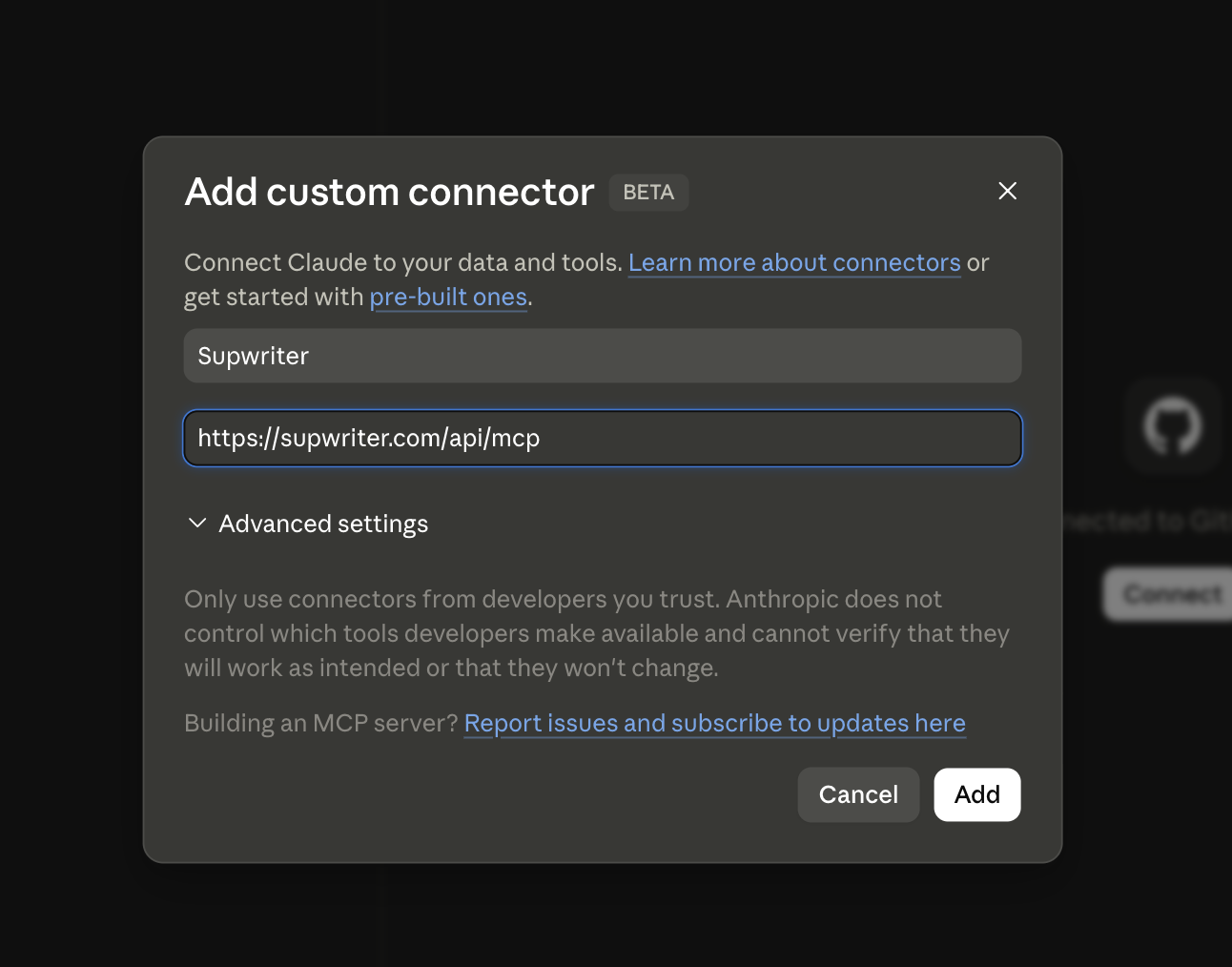
Give the connector a name — "SupWriter" — and paste the remote MCP server URL, then click Add:
https://supwriter.com/api/mcp
That's the only field you need. Claude handles the OAuth registration automatically; you don't paste any client ID or secret.
Step 5: Connect and approve
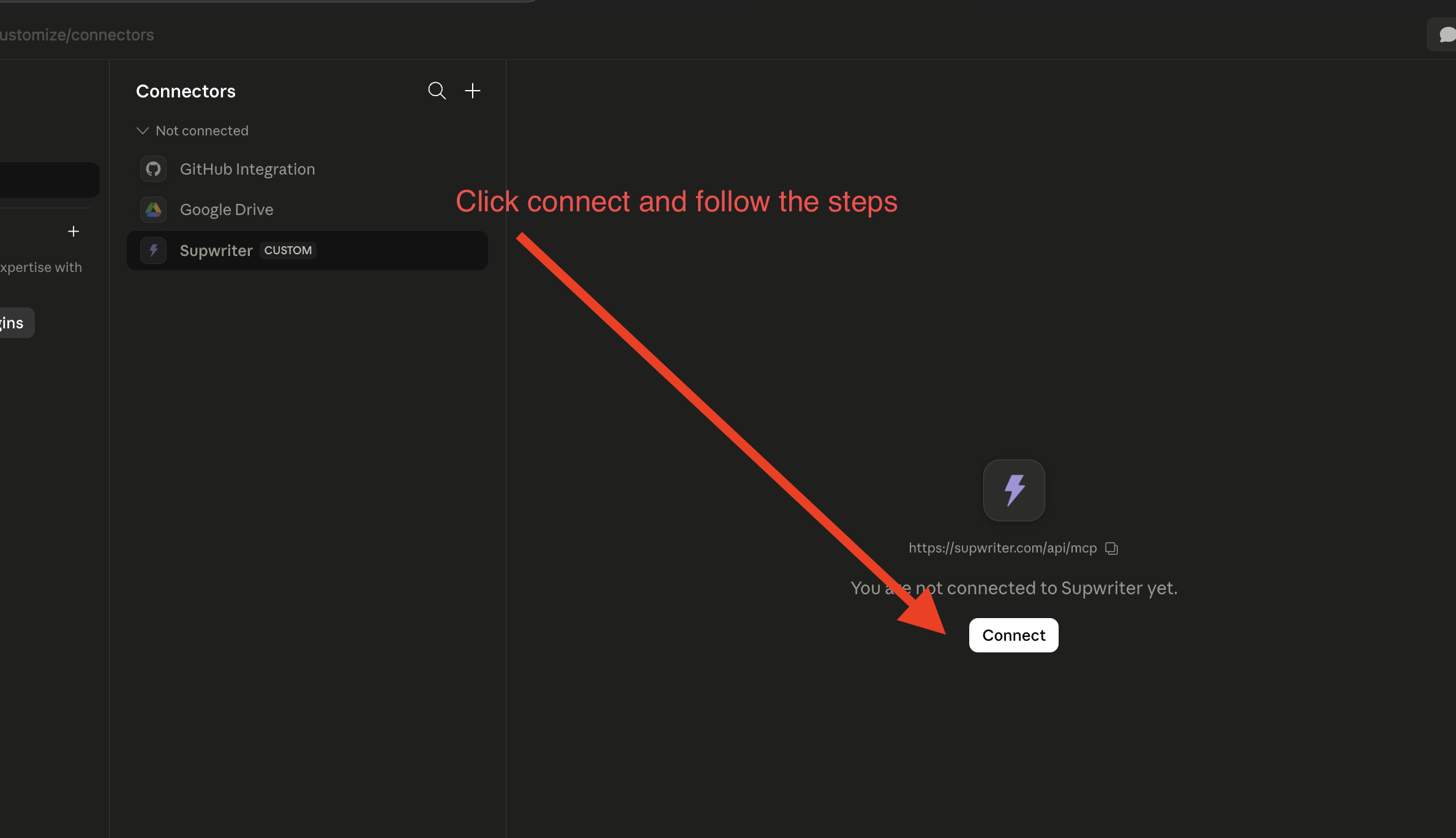
Open the new SupWriter connector and click Connect. Claude opens a browser window to SupWriter — if you're already signed in you'll go straight to the consent screen; otherwise log in first.
The consent screen tells you exactly what Claude is asking for: permission to humanize, paraphrase, check grammar, and detect AI on your behalf. Click Allow access, and Claude links the connector to your account.
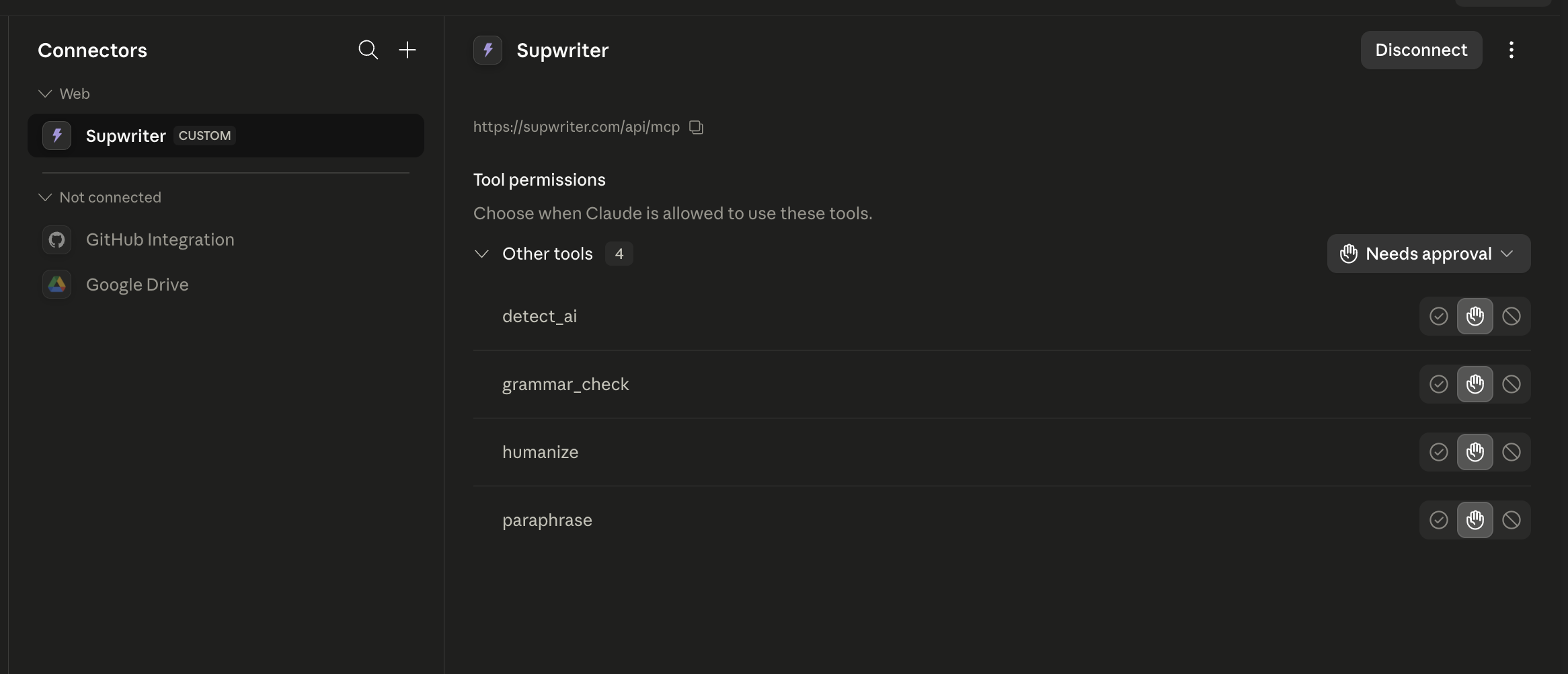
Once it connects, SupWriter shows up under your connectors with all four tools available:
Your first call
Back in the conversation, just ask. A few that work well:
- "Humanize this paragraph: …"
- "Draft a 150-word product description, then humanize it with a casual tone."
- "Run an AI-detection check on the text above and tell me which sentences are flagged."
Claude will show you the tool call before it runs and the result right after. Everything stays in the thread.
Troubleshooting
- "Authorization expired" or you're asked to sign in again. Access tokens are short-lived by design; Claude refreshes them automatically. If it asks you to reconnect, just approve again.
- A tool returns
INSUFFICIENT_CREDITS. You're out of word credits for that request. The message shows how many you needed versus how many you have. Top up or upgrade your plan. - A tool returns
PLAN_LIMIT. Your text is over your plan's per-request word cap (500 on free/basic, 2,000 on Pro, 5,000 on Ultra). Split it into smaller chunks. LANGUAGE_NOT_AVAILABLE. Your account can't use the language you asked for. The error message says what's needed, and English always works.
What you can do next
The same connector powers the humanizer, grammar checker, paraphraser, and AI detector. Using a different assistant too? We have setup guides for ChatGPT and Cursor, Claude Code & VS Code.
Make an AI-assisted draft sound like you
Rewrite stiff, AI-sounding passages in a natural voice.
Free account, no card · 300 free words
Related Articles

AI Humanizer CLI: Humanize and Detect AI Text From Your Terminal

CLI vs MCP vs API for AI Agents: Which One Should You Use?
Humanize AI Text Without Leaving Your Editor: The SupWriter MCP