By ShriPublished August 24, 2026
AI Humanizer CLI: Humanize and Detect AI Text From Your Terminal
Most AI writing tools live behind a text box. You draft somewhere, copy, switch tabs, paste, wait, copy the result, switch back, paste again. It works fine for one paragraph. It falls apart the moment you have forty markdown files in a content repo, or a nightly job that publishes drafts, or an AI agent that needs to clean up its own output before shipping it.
So we built a command-line version of SupWriter. It does the same four things the web app does — humanize, paraphrase, grammar-check, detect — except it reads from standard input, writes to standard output, understands globs, and exits with a code your CI can branch on.
npm install -g supwriter
sw login
cat draft.md | sw humanize > final.md
That is the whole onboarding. The rest of this post is what it does once it is installed, and where it is genuinely better than pasting into a browser.
What Ships
The CLI installs two commands, sw and supwriter. They are the same binary — use whichever reads better in your scripts.
| Command | What it does | Costs credits |
|---|---|---|
sw humanize | Rewrites AI-generated text so it reads as human-written | Yes |
sw paraphrase | Rewords while preserving meaning | Yes |
sw grammar | Fixes grammar, spelling and punctuation | Yes |
sw detect | Scores text for AI authorship, with an optional sentence breakdown | Yes |
sw whoami | Your plan, credit balance and limits | No |
sw balance | Remaining word credits | No |
Everything runs against the same engines as the web app and the same word-credit pool. There is no separate CLI plan and no separate pricing.
One honest note before you install: AI detection is free in the web app on paid plans but metered on the API, which means it costs credits from the CLI too. That surprises people, so we would rather say it in paragraph six than let you discover it in your usage chart.
Install and First Run
You need Node 20.10 or newer and a SupWriter API key. Keys live in Settings, under API, and the developer API is a Pro and Ultra feature — the CLI inherits that, so a free or Basic plan will not authenticate.
npm install -g supwriter
sw login
sw login prompts for the key without echoing it, verifies it against your account before saving anything, and writes it to ~/.supwriter/config.json with owner-only permissions. The key is never printed back in full — not by sw whoami, not by sw config list, not in an error message.
In CI you skip sw login entirely and set SUPWRITER_API_KEY as a secret. The CLI reads the environment before it reads the config file.
It Reads stdin, It Writes stdout
This is the part that makes it worth installing rather than curling the API by hand. Results go to standard output. Every status line, progress spinner and warning goes to standard error. Colour switches itself off when the output is not a terminal.
The practical effect is that the tool composes with everything else you already use:
cat draft.md | sw humanize > final.md
sw humanize draft.md | sw grammar | pbcopy
sw paraphrase --text "Rewrite this one sentence."
pandoc report.docx -t markdown | sw humanize --tone professional
If you would rather write files than pipe them, three flags cover it:
sw humanize draft.md --out final.md
sw humanize post.md --in-place
sw humanize 'drafts/*.md' --out-dir humanized/ --concurrency 3
Quote your globs and the CLI expands them itself, so 'docs/**/*.md' behaves identically in bash, zsh, fish and a CI runner. Batches run in parallel, report which files were written, and tell you the total words and credits spent.
Long Documents Do Not Break
The API caps a single request at your plan's per-request word limit — 2,000 words on Pro, 5,000 on Ultra. Paste a 12,000-word thesis into a naive script and you get a plan_limit error and nothing else.
The CLI splits longer documents on paragraph boundaries, sends the pieces in order, and reassembles the result using the original spacing. Nothing between paragraphs is invented or dropped. If a single paragraph is over the limit it re-splits on sentences, and if a single sentence is somehow over the limit it splits on whitespace rather than failing.
sw humanize thesis.md --out thesis.human.md    # splits automatically
sw humanize thesis.md --chunk-words 1500       # pick the size yourself
sw humanize short.md --no-chunk                # one request, fail if too long
AI detection is the deliberate exception. sw detect does not split by default, because a detection score for a whole document is not the average of scores for its parts — presenting it that way would be quietly dishonest. If you want it anyway, --chunk opts in, and the output tells you the number is a word-weighted average across chunks.
AI Detection as a Build Gate
This is the feature we did not anticipate people wanting most, and now think is the best reason to install it.
sw detect turns a score into an exit code. Pass --max-score and the command exits non-zero when content scores above your threshold:
sw detect content/post.md --max-score 30
sw detect 'content/**/*.md' --max-score 30
Which means AI-detection can be a check in your pipeline, like a linter or a failing test:
# .github/workflows/content.yml
- run: npm install -g supwriter
- run: sw detect 'content/**/*.md' --max-score 30
  env:
    SUPWRITER_API_KEY: ${{ secrets.SUPWRITER_API_KEY }}
Content teams running AI-assisted drafting have wanted this for a while: not a tool that tells you a piece reads as machine-written after it is published, but one that refuses to merge it. If you are curious what the score actually means before you set a threshold, our AI detector explains the scoring and shows the same per-detector labels the CLI prints. Those labels are a guide mapped from one underlying score, not twelve separate checks against Turnitin, GPTZero and the rest (how we test), so gate on the score itself.
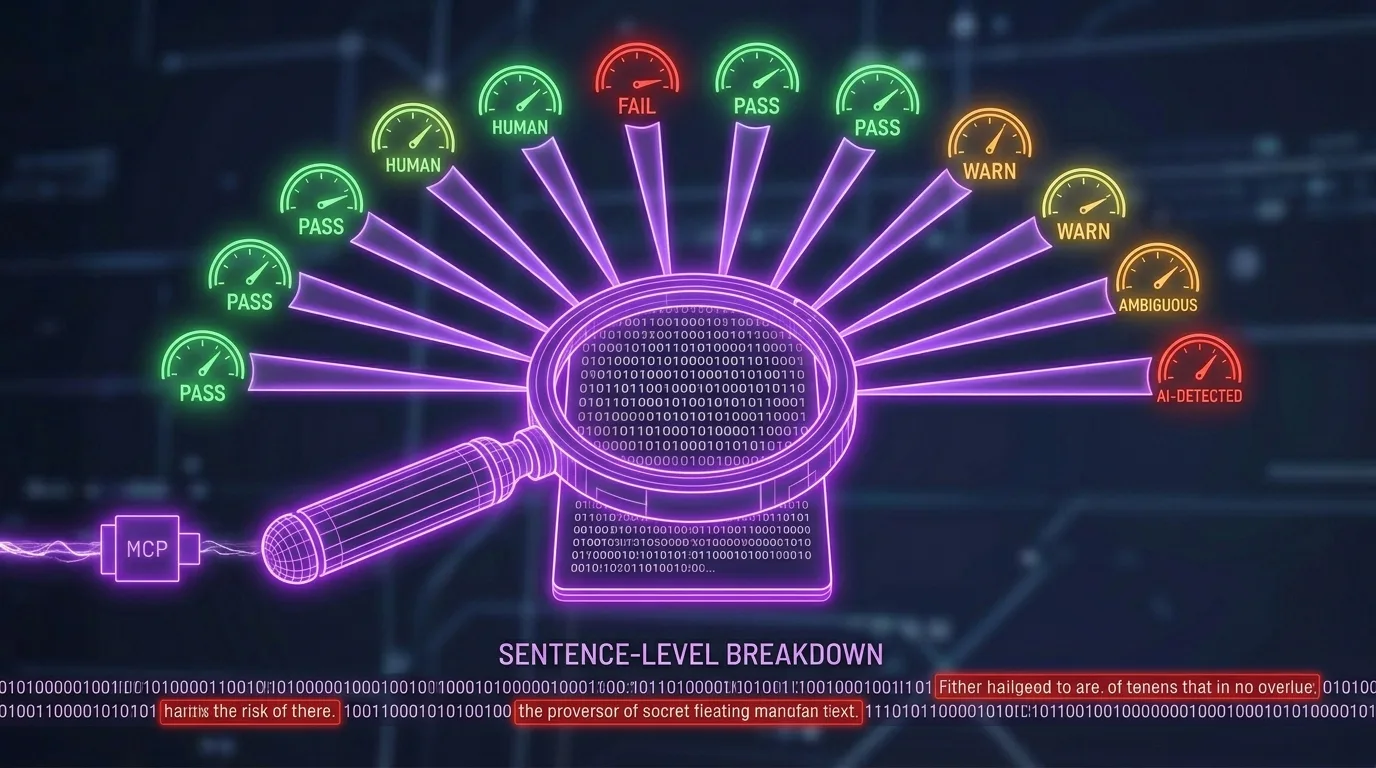
On a terminal, sw detect renders a readable report — score, a meter, the twelve guide labels derived from that score, and with --sentences, a per-sentence breakdown so you can see which lines are carrying the flag. Redirect it and you get clean data instead.
Exit Codes Are Part of the Contract
Scripts should not have to parse error messages. Each failure class gets its own code:
| Code | Meaning |
|---|---|
| 0 | Success |
| 1 | Failed, or a --max-score gate did not pass |
| 2 | Usage error — bad flag, missing file |
| 3 | Auth — missing, invalid or revoked key |
| 4 | Plan — the API needs Pro or Ultra |
| 5 | Credits — out of credits, or text over the per-request cap |
| 6 | Rate limited, after retries were exhausted |
| 7 | Network — unreachable, timed out, or an unreadable response |
The CLI also handles rate limits for you. Pro allows 60 requests a minute per key and Ultra allows 120; on a 429 the CLI waits for the period the server asks for and retries, and backs off on server errors and network blips. You can tune that with --retries and --timeout, or lower --concurrency on large batches.
For scripting, --json prints the API's data object on stdout, and sw balance prints a readable line on a terminal but a bare number in a pipe:
sw detect report.md --json | jq .detection_score
sw humanize draft.md --json | jq -r .humanized_text
if [ "$(sw balance)" -lt 1000 ]; then echo "top up"; fi
Why AI Agents Keep Reaching for Terminals
There is a broader pattern here worth naming. Through 2026, autonomous agents have converged on the shell as their integration surface of choice. Firecrawl's roundup of CLI tools for agents and ByteBridge's write-up on why agents gravitate to CLIs over REST APIs both land on the same reasons: a CLI handles authentication once, exposes a stable surface that does not shift between API versions, and returns a non-zero exit code that an agent can act on without interpreting prose.
Agents that can run shell commands — OpenClaw, Hermes Agent, a coding agent in your editor — can use sw the moment it is installed, with no connector to configure and no client library to write. If that is your situation, our companion post on CLI vs MCP vs API for AI agents works through which of the three surfaces fits which kind of agent.
What It Costs, and What It Does Not Do
Every call draws on the same word credits as the web app: humanize and detect cost one credit per input word, paraphrase and grammar one credit per output word. Pro includes 15,000 credits a month, Ultra 30,000. sw whoami and sw balance are free — they read your account without spending anything.
Being straight about the limits:
- Pro or Ultra only. The developer API gates on plan, and the CLI is an API client. Free and Basic accounts cannot create a key.
- Detection is metered here. Free in the browser on paid plans, charged per word through the API and CLI.
- Node 20.10 or newer. No standalone binary yet.
- Rewrites still need reading. The CLI makes the round trip fast; it does not make review optional. Skim the output before you ship it, particularly on academic work where a factual drift matters more than a detector score.
The full flag reference is in sw --help, and every command has its own sw humanize --help style page. There is a fuller reference on the CLI page and the underlying REST endpoints are documented in the API developer docs.
Want to try the engines before installing anything? The free AI humanizer runs in your browser — 300 words free, no credit card required.
Make an AI-assisted draft sound like you
Rewrite stiff, AI-sounding passages in a natural voice.
Free account, no card · 300 free words
Related Articles
CLI vs MCP vs API for AI Agents: Which One Should You Use?
Humanize AI Text Without Leaving Your Editor: The SupWriter MCP
A Grammar Checker Your AI Assistant Can Actually Call